11 · Managing multiple ESPuinos centrally: MediaHub
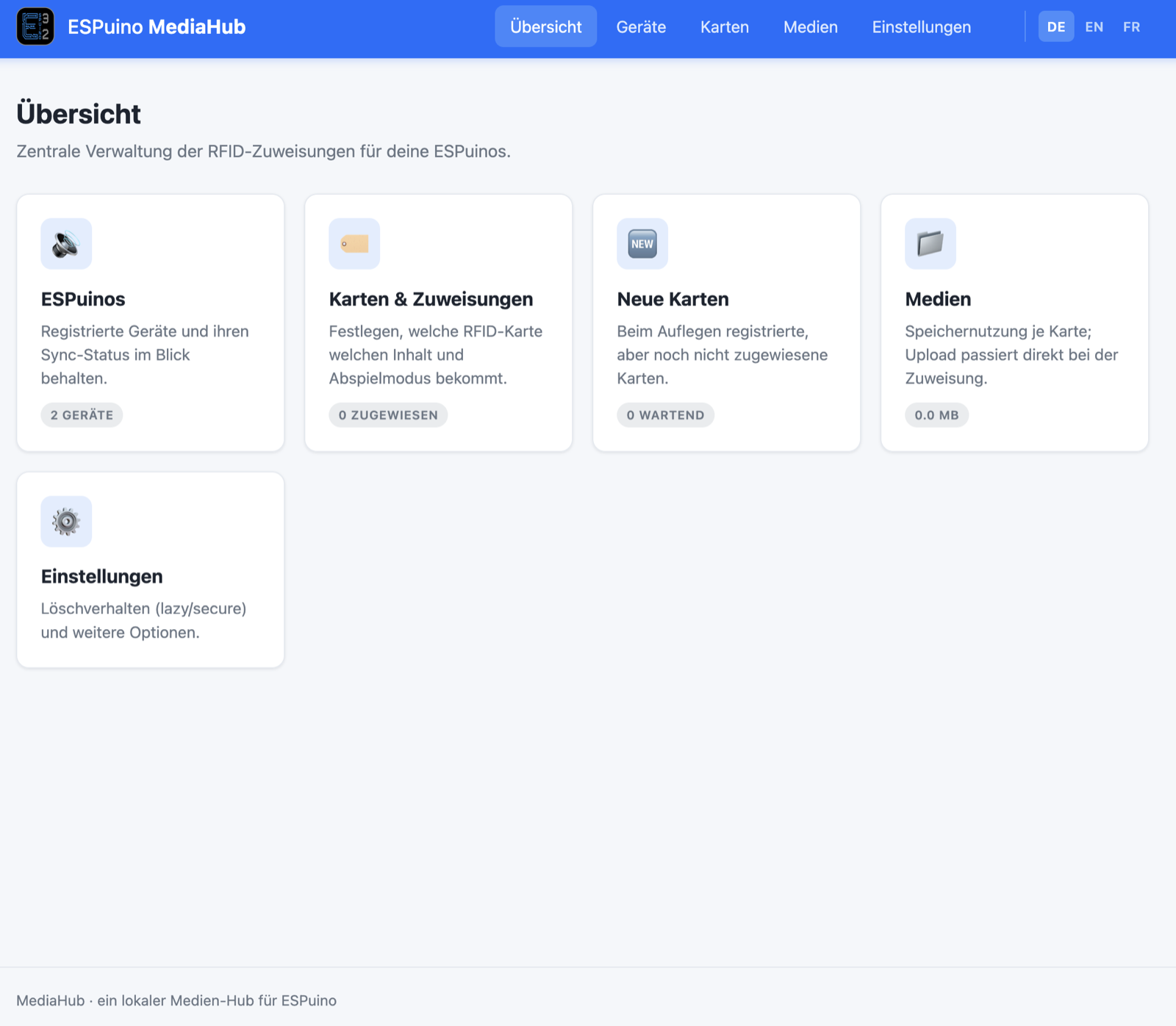 The MediaHub overview page: devices, cards & assignments, new cards, and media at a glance. The
interface is also available in English and French (switchable at the top right); this screenshot
shows the German version.
The MediaHub overview page: devices, cards & assignments, new cards, and media at a glance. The
interface is also available in English and French (switchable at the top right); this screenshot
shows the German version.
What problem MediaHub solves
As long as you run a single ESPuino, everything is simple: you set up your card assignments in the web interface, and they live in that one device's memory. But once several ESPuinos live in the household – one in the kids' room, one in the living room, one for the road – maintenance gets tedious. You'd have to teach every new card individually on every device, and load each SD card separately.
That's exactly the problem MediaHub addresses. MediaHub is an optional add-on component that lets you manage card assignments centrally in one place, instead of on every device separately. If you only have one ESPuino, MediaHub probably won't gain you much. If you already own several, though, or are planning to buy another, it can make management considerably easier. The feature is deliberately not called "cloud": MediaHub runs locally on your own network, and your media files stay at home with you.
Where the full guide lives
This chapter covers setup and operation in detail. For details on the source code itself – say, if you want to contribute to MediaHub's development – the MediaHub repository remains the source of truth; the in-depth forum discussion happens in forum thread #4607 (German-language).
How it works
MediaHub is a small, self-hosted server service that runs as a Docker container on your own network (a Raspberry Pi is entirely sufficient for this). It holds the central card assignments and knows about your media files – which stay exactly where they already are in your own folder structure; MediaHub doesn't copy or manage them itself, it only mounts them read-only.
The process consists of six steps:
- Register the MediaHub server. In the ESPuino web interface, enter your MediaHub server's address in the MediaHub tab. You can register several servers and remove them again without affecting cards that are already taught.
- Teach a card as "MediaHub". In the RFID tab, teach a new card – as the playback mode, choose MediaHub, and below that, pick the desired media server from the list of registered servers. You don't specify a path here; ESPuino only knows which server to contact. You can skip this step entirely if you have enabled the option "Ask the MediaHub about unknown cards directly, without teaching them first" – the tap alone is then enough.
- First tap: registration. The first time you place the card, ESPuino sends a request to MediaHub. There, the card now shows up as "pending" – with the card ID and the identifier of the requesting ESPuino, but no content yet.
- Assignment on MediaHub. In the MediaHub web interface, you link the pending card to some content – a file, a folder, or a web radio stream – and set the playback mode, exactly as you would otherwise do in the ESPuino web interface. If you have several devices, you can cover them all in the same step (see below).
- Second tap: download. The next time the card is placed, ESPuino asks again and this time gets back a manifest – the list of all the files it needs. It downloads them and stores them in a hidden directory on its own SD card. Playback is locked during the download; the Neopixel ring shows the progress in blue.
- Playback. Once the download finishes, playback starts – from then on locally from its own SD card, independent of MediaHub. If you later change the assignment on MediaHub, ESPuino notices on its own: the next tap still plays the old version, but compares versions in the background and remembers that a newer one is waiting. The tap after that downloads it without playing yet; only the one following plays the new content.
What's centralized – and what isn't
MediaHub doesn't take placing the cards off your hands: you still need to place each card once per device – either to point it at MediaHub as in step 2 while you're there, or, if you have enabled the option "Ask the MediaHub about unknown cards directly, without teaching them first", through the tap alone. The reason: otherwise MediaHub itself would need its own RFID reader just to know the card's ID at all. What's centralized is only the actual link to the content – i.e. which files or stream and which playback mode belong to a card. You maintain that assignment once on MediaHub, and every device pulls it from there.
Setting up the MediaHub server
For the server, you need a machine with Docker and the Compose plugin – a Raspberry Pi is entirely sufficient.
No server yet – or never worked with Linux before?
The commands in this section assume that Docker is already running on your server and that you roughly know what they do. If that's not the case, start with the section Setting up the server – from scratch instead: it begins with an empty machine, explains every step and ends up in the same place.
MediaHub is published as a ready-made image, for amd64, arm64 and arm/v7 – which covers a
Raspberry Pi 2, a Pi 5 and an Intel NAS alike. So there is nothing to compile, and you don't even
need a copy of the project: two files are enough.
mkdir ESPuino-Mediahub && cd ESPuino-Mediahub
curl -O https://raw.githubusercontent.com/biologist79/ESPuino-Mediahub/main/docker-compose.yml
curl -o .env https://raw.githubusercontent.com/biologist79/ESPuino-Mediahub/main/env-example
docker compose up -d
The folder for the database isn't something you have to deal with: the container creates it on first start and hands it to its own service account before giving up its privileges.
The trick here: your personal settings live in the .env file, not in the docker-compose.yml.
Edit only the .env – then you can replace the docker-compose.yml with a newer one at any time
without losing your settings.
The .env file
| Variable | Default | Meaning |
|---|---|---|
MEDIAHUB_TAG |
latest |
Which version of the image runs. latest follows the development state; a value like sha-4a86674 pins one exact state and is the way back should a change cause trouble. |
MEDIAHUB_PORT |
8080 |
Port MediaHub is reachable on. Pick a different one if it's already taken. |
MEDIAHUB_DATA |
./data |
Storage location for the MediaHub database (db.json). The folder needs write access. |
MEDIAHUB_MEDIA |
./media |
Path to your existing media collection. Mounted read-only – MediaHub never creates or changes anything in it. |
MEDIAHUB_NAME |
espuino-mediahub |
Name of the container, for docker logs <name> for instance. Only needed if you want to run several MediaHubs on the same machine. |
MEDIAHUB_UID / MEDIAHUB_GID |
33 / 33 |
User/group ID the service runs as (default: www-data). Set them to the ID that owns your media collection and any adjusting of file permissions becomes unnecessary. |
TZ |
Europe/Berlin |
The container's timezone, used for timestamps such as "last seen". |
Files visible but not readable?
Directory listing and file reading are two separate Unix permissions: a track can show up in
the file tree, yet still fail with "permission denied" when assigned, if the file itself isn't
readable by the MediaHub UID. Either chmod -R o+rX /path/to/your/library fixes this, or set
MEDIAHUB_UID/MEDIAHUB_GID in .env to the UID/GID that already owns your library
(id -u / id -g).
After starting it, check with docker compose ps whether the container is running, and open
MediaHub in your browser at http://<your-ip>:8080.
HTTPS isn't recommended
If you really need encryption, put a reverse proxy in front (Traefik, for instance). For the connection between ESPuino and MediaHub, though, HTTPS is a bad idea: it costs the ESP32's already-tight memory and noticeably lowers throughput – unencrypted gets you roughly 650–700 KB/s, encrypted considerably less.
Setting up the server – from scratch
The section above assumes that Docker is already running on your server and that you're comfortable with the command line. If you aren't, this section picks you up a good deal earlier. It goes from a brand-new, still empty Raspberry Pi all the way to a running MediaHub and explains the terms that matter along the way – and if you own a NAS from Synology or QNAP, or already run Docker somewhere, the next section tells you which steps you can skip. You don't need any prior Linux knowledge; this isn't a full Linux course either. What gets explained is what you need to understand for this one purpose.
Set aside half an hour to an hour, a good part of which is waiting: the card gets written, the system updates itself, and the container image is downloaded. If you get stuck somewhere along the way, the command reference at the end of this section helps.
Maybe hardware you already own is enough
Before you buy anything: a Raspberry Pi that runs only MediaHub is seriously under-used. The service consists of a single container that does nothing at all most of the time – it only wakes up when an ESPuino reports a card or you change something in the browser.
A single machine can run as many containers side by side as memory and processing power allow – each
with its own dependencies and without quarrelling with the others. A
Pi-hole, Home
Assistant, a
Paperless-ngx, a
weather station – to name just a few – and MediaHub right along with them. Memory is the limit
you'll hit first: on a Pi with 1 GB you run out sooner than on one with 8 GB. The second ground rule
is the port – every service needs one of its own, and for MediaHub you set it with MEDIAHUB_PORT
in the .env. MediaHub itself is the least of your worries there: a Python process with two workers
that computes nothing in the background.
Turned around, that means: if Docker is already running somewhere in your home – on a Pi, on a small server, in a VM – you only need steps 5 to 7 of these instructions.
And it doesn't have to be a Raspberry Pi. Anyone running a NAS already has suitable hardware in the house: a machine that's powered on around the clock anyway, and that usually holds the media collection already. On off-the-shelf models, Docker is a package you install from the web interface – Synology calls it "Container Manager", QNAP "Container Station", and other vendors something similar. If your NAS runs on something you built yourself, say OpenMediaVault, Unraid or TrueNAS, Docker is either there already or a few clicks away as an add-on. In all of these cases, steps 1 to 4 fall away entirely: operating system, SSH access and Docker installation are already taken care of.
Four notes on that:
- MediaHub is published as a ready-made image, so there is nothing to build. That means the NAS web
interface is enough: you create a "project" there, paste in the project's
docker-compose.ymland start it. The image is fetched automatically on the first start. - The settings from your
.env(more on that shortly) can usually be entered directly as environment variables in those interfaces instead of maintaining a file – the same values end up in the container either way. - The file permission topic from step 6 doesn't spare you on a NAS either. There, the user and group ID the share belongs to decide what the container is allowed to read.
- If the NAS interface can't cope with the Compose file, go the SSH route: Docker on a NAS is the
same Docker, so the commands from steps 5 to 7 apply unchanged. The paths in them don't,
though – on a Synology, shares typically live under
/volume1/…, on a QNAP under/share/…. Anls /volume1orls /sharerespectively shows you what yours are called.
What you need for it
If you go for a Raspberry Pi, here's what it takes:
| Ingredient | Note |
|---|---|
| Raspberry Pi 2 or newer | MediaHub is so undemanding that even an old Pi 2 will do. Just note: the 64-bit systems are only released for the Pi 3 and up – on a Pi 2 you pick the 32-bit variant in step 1, which the MediaHub image covers as well. |
| Original power supply | The most common cause of apparently broken Raspberry Pis is an underpowered phone charger. |
| microSD card, 16 GB | System and container image together need only a few gigabytes. If you leave the Pi running permanently, an SSD on the USB port lasts longer – SD cards eventually die from all the write cycles. If it is to be a card anyway, pick a model built for continuous writing: they're sold as "High Endurance" or "Pro Endurance", really meant for dashcams and surveillance cameras, and take many times the abuse. |
| Network | Via network cable or Wi-Fi. For a server that serves out audio files, the first option is the more stable choice if in doubt. |
| A computer | You use it to write the card and to operate the Pi remotely afterwards. |
Monitor, keyboard and mouse are not needed on the Pi. It's operated over the network from the very first moment – which, for a server that will later sit in some corner, is the normal case anyway.
What Docker actually is
MediaHub is a Python program and needs a number of building blocks in particular versions: Python itself, the Flask web framework, a web server and a few more libraries. Setting all that up on a Pi by hand is possible, but tedious – and you get to redo it with every update.
That's precisely what Docker is for. The idea: you don't set up the environment, a text file in the
project (the Dockerfile) describes it – "take Python 3.12, install these packages, start this
program". That description is worked through once, and the result is an image: a finished,
immutable template. For MediaHub this doesn't happen on your machine but automatically at GitHub,
after every change to the project. The result sits in a registry – a warehouse for images, in
this case GitHub's own. All you do is download it from there.
Start an image and it becomes a container – loosely speaking a sealed-off little computer in which this one program runs, together with everything it needs for that: precisely the building blocks from above, so Python, Flask, the web server and the libraries, plus a slim Debian base system. What it doesn't hold is anything else – no desktop, no other services. Unlike a virtual machine, though, the container brings no kernel of its own; it uses the Pi's. That's why it costs almost no resources and starts in seconds.
Three things about this matter for you:
- The container is disposable. You can delete it and create it anew at any time, and that is exactly what happens with every update. Nothing is lost in the process as long as the data lives outside it – see the next point.
- Whatever is meant to survive lives in a volume. A volume is a folder on the Pi that is handed
into the container. MediaHub uses two of them:
data(the database, writable) andmedia(your media collection, handed in read-only). Everything else inside the container is transient. - The container only sees what you hand in. That's a security gain, but it also makes for the single most common pitfall: a path you haven't declared as a volume doesn't exist as far as MediaHub is concerned – even if it's perfectly present on the Pi.
That leaves Compose. A container needs a good number of details at startup: which image, which
port, which volumes, which user to run as, what should happen after a reboot. Instead of burdening
you with all that as an endless command line, MediaHub keeps it in the file docker-compose.yml.
The command docker compose reads that file and carries out what it says. So you only ever type
short commands, and the configuration stays readable in a file.
docker compose or docker-compose?
Compose used to be a separate program, invoked with a hyphen (docker-compose up). Today it is
a plugin and therefore a subcommand of Docker itself, without the hyphen
(docker compose up). Older guides on the web still use the old spelling. If you use the
commands given here, you're on the right side of that.
Step 1 · Writing the operating system to the card
Download the Raspberry Pi Imager – it's available for Windows, macOS and Linux. It downloads the operating system and writes it to the SD card.
How that goes in detail is shown better by the official documentation and countless videos than a handbook chapter could. Only two decisions matter for us:
The right operating system. Under "Raspberry Pi OS (other)", pick Raspberry Pi OS Lite (64-bit). "Lite" means: without a graphical desktop. That's not a sacrifice but desirable for a server – what isn't installed needs no memory and doesn't want updating. The Pi is operated from the command line anyway. On a Pi 2 or an even older model, pick Raspberry Pi OS Lite (32-bit) instead: the 64-bit images are only released for the Pi 3 and up, and Docker runs just as well on the 32-bit variant.
The presets before writing. The Imager asks whether it should customise the installation. Say yes and fill in:
- Hostname –
mediahub, for example. The Pi is then usually reachable on your home network asmediahub.local, and you don't have to memorise an IP address. - Username and password – your choice. A preset user
piwith the passwordraspberryhasn't existed for some years now; without this entry the Pi wouldn't come up on first boot at all. - Wi-Fi including the country, if you're not using a network cable.
- Enable SSH, with password authentication.
These details are written onto the card along with everything else. That way the Pi joins the network by itself on its very first boot and can be operated remotely right away – without the SSH tick it would stay mute and you'd need a monitor after all.
Then: card into the Pi, network cable in, power on. The first boot takes a minute or two because the file system is expanded to the size of the card.
Reserve a fixed address in your router
Every ESPuino later stores the address of its MediaHub. If the Pi gets a different IP address from the router on some reboot, your devices won't find it any more. So reserve a fixed IP address for it in the router settings (usually called "DHCP reservation" or "always assign the same IPv4 address"). That's five minutes of work that saves you a confusing search for faults later.
Step 2 · The first connection via SSH
SSH is an encrypted remote control for the command line: you type on your computer, and everything is executed on the Pi. Open a terminal for it – on macOS the "Terminal" app, on Windows PowerShell or Windows Terminal, on Linux your usual terminal – and enter (with your username and your hostname):
On the very first connection, SSH asks whether you trust the machine and shows a "fingerprint".
Confirm with yes. After that you're asked for the password. The fact that nothing appears
while you type it – not even asterisks – is normal and not an error; just keep typing and press
Enter.
If a line like username@mediahub:~ $ greets you, you're in. The ~ is shorthand for your home
directory, written out /home/username – the directory you're allowed to write to as an ordinary
user, and the one we'll put MediaHub in shortly. The shorthand works everywhere, not just in the
prompt: cd ~ takes you back there at any time, and ~/ESPuino-Mediahub means the same folder as
/home/username/ESPuino-Mediahub. With exit you can end the session at any time.
mediahub.local doesn't work?
Resolving .local names doesn't work reliably on every network and every computer. In that
case, look up in your router's device list which IP address the Pi was given, and connect to
that instead: ssh username@192.168.1.50.
One term that comes up constantly from here on: sudo. As an ordinary user you deliberately
aren't allowed to change the system. You put sudo ("superuser do") in front of a single command to
run it with administrator rights; now and then your password is asked for in the process. The
administrator, incidentally, is called root on Linux and carries user ID 0 – everything is
permitted to them, which is exactly why you don't work as them permanently. Anything that changes
the system itself – installing packages, rewriting the owner of folders – needs sudo. Everything
else deliberately runs without it.
Step 3 · Updating the system
Raspberry Pi OS manages its software with apt – a kind of app store for the command line that installs programs from vetted package sources and keeps them current. Start with:
The first command only fetches the current package lists ("what's available by now?"), the second
then actually installs the updates. The -y answers prompts with yes in advance. You don't need to
install anything else here: MediaHub itself comes as a ready-made image, and the tool to download it
(curl) is already part of the Lite image.
If the upgrade included a new kernel, reboot the Pi once and reconnect via SSH afterwards:
Step 4 · Installing Docker
Docker provides an official script for the installation that sets up the package source and installs all the necessary parts:
The first line downloads the script (curl is a command-line downloader), the second runs it.
Afterwards Docker itself, its command-line tool, the background service and the buildx and
compose plugins are installed – so docker compose is available without any further
installation.
Why not simply apt install docker.io?
Because that package doesn't bring the Compose plugin, and Compose is precisely what MediaHub is started with. And yes: the script above downloads a file from the internet and runs it with administrator rights. It is the official one from Docker, and for a home server that's the usual route. If you want to be stricter about it, set up the package source by hand following the Docker documentation – the result is the same.
So that you don't have to put a sudo in front of every Docker command, add yourself to the
docker group:
Whoever is in this group may control Docker – and thereby effectively do anything on the machine.
For a home server that's the usual arrangement; on a machine with several users you'd look more
closely. Group membership also only takes effect on a new login. So end the session with exit
and connect again via SSH. After that you check whether everything is in place:
Both commands should print a version number. If they do, the groundwork is done.
Step 5 · Downloading and configuring MediaHub
You don't have to download the program itself – it sits in the ready-made image that Docker fetches by itself in the next step. All you need are two small text files: the description of the service and your own settings. Create a folder for them:
mkdir ~/ESPuino-Mediahub
cd ~/ESPuino-Mediahub
curl -O https://raw.githubusercontent.com/biologist79/ESPuino-Mediahub/main/docker-compose.yml
curl -o .env https://raw.githubusercontent.com/biologist79/ESPuino-Mediahub/main/env-example
mkdir creates the folder, cd ("change directory") moves into it, and curl downloads the two
files from the project – the second one straight away under its new name .env (the leading dot
makes it a hidden file on Linux; ls -a shows it regardless). All the following commands belong
in this folder, because docker compose always looks for the docker-compose.yml in the current
directory. If you're ever unsure where you've ended up: pwd tells you, and cd ~/ESPuino-Mediahub
takes you back.
Now your settings:
nano is a simple text editor for the terminal: move the cursor with the arrow keys, save with
Ctrl+O and Enter, leave the editor with Ctrl+X.
Which values belong in there is listed in the table further up. Two of them are
usually enough to begin with: point MEDIAHUB_MEDIA at your media collection and, if port 8080 is
already taken on the Pi, enter a different MEDIAHUB_PORT.
Only edit the .env
It's tempting to change the values directly in docker-compose.yml – don't. That file belongs
to the project and is overwritten, or causes conflicts, with every update. The .env, on the
other hand, is yours and stays untouched.
Step 6 · Mounting the media collection and sorting out file permissions
Up to here, every step was the same for everybody. From here on it gets individual: where your radio plays, audiobooks and music live, on which medium and file system, and who owns the files – that looks different in every household. So there is no recipe to type out for this step, and it's at the same time the place where Linux newcomers most often get stuck. That's why it gets a step of its own and a bit more explanation than the others.
There are in fact only two questions to answer, and they stay the same however your setup looks: does the Pi see your collection as a folder at all? And: is the user that MediaHub runs as allowed to read those files? The following paragraphs work through the most common cases. If yours isn't exactly among them, don't let that put you off – the two questions are still the right ones, only the route to the answer differs.
For those coming from Windows: no drive letters
On Linux there is no C: and no D:. There is exactly one directory tree, starting at /,
and everything else hangs somewhere inside it. A USB medium therefore gets no letter but is
hooked into a place in that tree – usually below /mnt or /media. So /mnt/media-library
isn't a drive but a perfectly ordinary folder that shows the contents of the medium as long as
that medium is mounted. Two more small things that differ from Windows: paths are separated by
the forward slash / and not the backslash, and capitalisation matters – Audiobooks and
audiobooks are two different folders.
First: where does your collection live? MediaHub can only read what is present on the Pi as a
folder. If it sits on a USB medium attached to the Pi, that medium has to be mounted permanently –
Raspberry Pi OS Lite doesn't do that by itself without a desktop. lsblk -f shows you the attached
media along with their UUIDs; with that UUID you enter the medium in /etc/fstab so that it turns up
automatically in the same place on every boot.
A word about that file, because the rest of this step hangs on it: /etc/fstab ("file systems
table") is the list of media the system is to mount while booting. One line per medium, and each
names four things – what is mounted (here via the UUID, because device names like /dev/sda1 can
shift around on the next boot), where in the directory tree, with which file system, and with which
options.
Mounting also works without this file: a sudo mount /dev/sda1 /mnt/media-library takes effect
immediately. After the next reboot it's gone again, though – and then MediaHub shows an empty
library without anything being broken. So whatever is meant to apply permanently belongs in the
fstab:
A line like this one at the end of the file is enough (adjusting UUID and file system to your medium, of course):
The nofail matters: without that option the Pi hangs on boot whenever the medium happens not to be
attached. The uid, gid and umask options determine who the files on this medium should belong
to – what's behind that is explained in the paragraph on file permissions right below. They only
take effect on file systems without permission handling of their own, that is exFAT, FAT32, NTFS and
network shares. If your medium is formatted with ext4, leave them out (otherwise the command
refuses to play along); there, the permissions stored in the file system itself apply – see two
paragraphs below.
To make the new line take effect right away you don't have to reboot: sudo mount -a works through
the fstab on the spot and mounts everything listed there that isn't mounted yet – exactly as
happens while booting. That also makes the command the best test: if it runs through without
grumbling, it will work on the next boot too; if it takes issue with your line, you find out now and
not at the next reboot. If it's meant to be just this one entry,
sudo mount /mnt/media-library will do. Whether it worked is shown by ls /mnt/media-library. After
that, set MEDIAHUB_MEDIA=/mnt/media-library in the .env.
If the collection lives on a NAS or a network share, the route is the same, only with
cifs-utils (sudo apt install -y cifs-utils) and a //server/share line in the fstab. Do note:
with network shares it's the mount options that decide the permissions, not the permissions on
the NAS – uid=33,gid=33 in the fstab line saves you the whole next paragraph.
And now the file permissions. For those, it's worth a short look at how Linux tells users apart in the first place – that's one of the things worth understanding once, because a lot falls into place afterwards.
Linux doesn't know its users by their name, you see, but by a number: the user ID, uid for
short. The same goes for groups, where it's called the group ID or gid. Names like pi or
www-data are merely labels that the system looks up in a table; what gets stored and checked is
always the number. A few of them are fixed: 0 is root, the numbers below 1000 belong to service
accounts – 33 is www-data, the account web services usually run as – and the first user you
created during installation normally has 1000. Your own numbers are revealed by id, individually
by id -u and id -g.
Every file and every folder now carries exactly two of these numbers, namely the owner's uid and the
group's gid. On top of that come the access rights, and those are granted three times over: for the
owner, for the group and for everyone else, each split into reading, writing and executing. ls -l
shows you that – with the names; ls -ln shows the numbers instead, which is sometimes more
revealing.
The decisive part now: the MediaHub service does not run as the administrator but, by default,
under user ID 33. That's deliberate – a service on the network shouldn't have more rights than it
needs. That we're talking about the number and not a username has the same reason as above: inside
the container, 33 is called www-data, on your Pi perhaps nothing at all or something entirely
different – what gets compared is the number. For you that means: it isn't your rights that decide
what MediaHub can read, but those of ID 33.
The container takes care of its own data folder by itself: it starts briefly with administrator
rights, rewrites the owner of data and then gives up those rights. So that step falls away for
you.
Your media collection, by contrast, it leaves untouched – that collection has to be readable for ID 33, and here's where the real trap lies: listing a folder and reading a file are two different rights on Linux. So it can happen that a track shows up nicely in MediaHub's file browser, yet assigning it fails with "permission denied". Then one of these two helps:
… which lets everyone else ("others") read the files (r) and change into folders. The capital
X is not a typo but the trick: it sets the execute right for directories only and doesn't turn
every MP3 file into a program. Alternatively you run the container under the ID that owns your
collection anyway – id -u and id -g show your own, which you then enter as MEDIAHUB_UID and
MEDIAHUB_GID in the .env. Both are fine; take whichever means less work for you.
And how does the folder get into the container now? That's what the MEDIAHUB_MEDIA line in
your .env is for. It names the path on the Pi – following the example above, /mnt/media-library.
Docker hands that folder into the container at startup, where it always ends up in the same place:
at /media, and read-only. So inside the container your collection is called /media no matter
where it sits on the Pi. That's the second half of the volume idea from further up – your path on
the outside, a fixed one on the inside.
The same goes for the data folder: MEDIAHUB_DATA names the place on the Pi, inside the container
it's always /data. Two things follow from that for everyday use:
- The paths you later see in the MediaHub web interface are relative to that root. If you ever
move your collection somewhere else, you only change
MEDIAHUB_MEDIAand the cards already assigned keep working – there are no absolute paths in the database. - After a change to the
.env, adocker compose restartis not enough. A changed volume is only picked up when the container is created anew.docker compose up -dnotices the changed configuration and replaces it – yourdatafolder stays untouched in the process.
And what if the files live in more than one place? That's the normal case as soon as a second hard drive turns up, or part of the collection sits on the NAS and part of it on the Pi. MediaHub, however, knows only one root. So the way to go isn't to register a second one, but to make all the sources subfolders of the same root.
For that you create a parent folder and mount the sources into it. All the paths and names in the
examples below are yours to choose – /srv/mediahub with usb, nas and audiobooks underneath is
just one possibility; the only thing that matters is that all the sources end up below one
folder – in the example that follows, below /srv/mediahub:
That single call creates three folders at once – and thanks to -p the parent /srv/mediahub
along with them, in case it doesn't exist yet. Three is no magic number here: you simply list as many
paths in a row as you have sources – two, ten, or however many it happens to be.
In the fstab, the entries then point at those subfolders – the USB medium at /srv/mediahub/usb,
the network share at /srv/mediahub/nas. And for a folder that already sits somewhere on the system
disk and isn't a medium of its own at all, there's the bind line. It acts like a second door
into the same room: the folder stays where it is but becomes reachable under the new path as well.
Both paths then lead to the same files – nothing is copied, there is no second copy, and whatever you
change in one place is already changed in the other, because it is the same folder:
On the left is the folder that already exists, on the right the place where it should additionally
appear. The ro means that this second door is read-only – the original path is unaffected by it,
and reading is all MediaHub needs anyway.
After that, all the .env needs is MEDIAHUB_MEDIA=/srv/mediahub, and the web interface shows
usb, nas and audiobooks as three folders of a single library.
So that it doesn't stay abstract, here's the whole thing as a picture. This is what the directory tree on the Pi looks like if you followed the example:
/
├── etc/
│   └── fstab                     this is where the mount entries live
├── home/
│   └── username/
│       ├── ESPuino-Mediahub/     your working folder
│       │   ├── docker-compose.yml
│       │   ├── .env              containing: MEDIAHUB_MEDIA=/srv/mediahub
│       │   └── data/             the database (db.json)
│       └── audiobooks/           simply sits on the system disk
└── srv/
    └── mediahub/                 the root of your library
        ├── usb/                  USB drive, mounted via fstab
        ├── nas/                  network share, mounted via fstab
        └── audiobooks/           second door into ~/audiobooks (bind)
And this is the tree that MediaHub sees inside the container – two of those folders come in from outside, the rest sits in the image:
/
├── app/                          the program, from the image
├── data/     ◄── ~/ESPuino-Mediahub/data      writable
└── media/    ◄── /srv/mediahub                read-only
    ├── usb/
    ├── nas/
    └── audiobooks/
So MediaHub knows nothing about your Pi – apart from these two folders. And on the inside they are
always called /data and /media, no matter what the paths outside are.
Choose the root generously from the start
Assigned cards store their paths relative to the root. If you move the root up a level later
on – say from /mnt/media-library to /srv/mediahub, because a second source joins – all the
stored paths change along with it and the existing assignments point into the void. So if you can
foresee having more than one source, create the parent folder right away, even if only one
source is mounted inside it at first. That costs you one folder now and saves reassigning every
card later.
What does not work is symlinks leading out of the library. MediaHub resolves every path and
rejects anything that leads outside the root – that's deliberate, because a symlink would otherwise
let the entire contents of the container be served. So a symlink to /home/username/audiobooks
inside /srv/mediahub is turned down; the bind line above is precisely its working replacement.
Step 7 · Starting it and taking a look
Now for the big moment:
Two things happen here: up downloads the image on the first run – around 55 MB, so depending on
your connection a matter of seconds to a few minutes – and starts the container from it. The -d
sends it into the background, and that matters: it keeps MediaHub running even once you end the SSH
session and your computer goes off.
Whether it's running is revealed by:
If all is well, the output looks like this:
NAME               IMAGE                                         COMMAND                  SERVICE    CREATED          STATUS          PORTS
espuino-mediahub   ghcr.io/biologist79/espuino-mediahub:latest   "/entrypoint.sh guni…"   mediahub   19 minutes ago   Up 19 minutes   0.0.0.0:8080->8080/tcp, [::]:8080->8080/tcp
The decisive column is STATUS: an Up … means the container is running. If it says Exited or
Restarting, something went wrong, and docker compose logs will tell you what. Two more columns
are worth a look. IMAGE shows which version is actually running – here :latest; with a pinned
tag, the sha-… would appear instead. And PORTS reads from left to right:
0.0.0.0:8080->8080/tcp means that port 8080 on the Pi leads to port 8080 inside the container.
The same number appearing twice is just the default case – on the inside the port is always 8080,
and on the outside it's whatever MEDIAHUB_PORT says. Put 8090 in there, for instance, and the
column reads 0.0.0.0:8090->8080/tcp. So it's the same idea as with /media and /data: your
choice on the outside, a fixed value on the inside. The second entry with [::] is the same thing
again for IPv6.
Now open MediaHub in your browser, using the left-hand port from that line – here
http://mediahub.local:8080, or the Pi's IP address with the port from your .env. How things
continue in the MediaHub web interface is described in the section
The MediaHub web interface.
Starting up again after a power cut, incidentally, is nothing you need to worry about: the
docker-compose.yml says restart: unless-stopped. So Docker starts the container by itself after
the Pi reboots – unless you explicitly stopped it yourself.
The most important commands for everyday use
You run all of these commands in the folder that holds your docker-compose.yml – following these
instructions, that is ~/ESPuino-Mediahub:
| Command | Effect |
|---|---|
docker compose ps |
Is the container running? Shows status and port. |
docker compose logs -f |
Follows the log – the first place to look when something doesn't work. Ctrl+C ends the following, not the container. |
docker compose restart |
Restart the container. |
docker compose stop / docker compose start |
Halt it and bring it back up, for a backup for instance. |
docker compose pull then docker compose up -d |
The update: fetch the new image, replace the container with it. |
docker compose down |
Remove the container. Your data in the data folder is kept. |
docker images |
Lists the images present with tag and size – that's how you see which sha- versions are still lying around. |
docker image rm <name:tag> |
Deletes a particular image, say the one from the week before last. If a container is still using it, Docker refuses – then run docker compose down first. |
docker system prune -f |
Clears out old, no longer used images – after several updates that frees up noticeable space on a small SD card. Affects all containers on the Pi, not just MediaHub. |
First aid when it doesn't run
If the container doesn't start, or the page in the browser stays blank, docker compose logs
almost always supplies the answer in plain words. Typical cases: a port already in use (then
enter a different MEDIAHUB_PORT in the .env), a MEDIAHUB_MEDIA path that doesn't exist on
the Pi at all – MediaHub does start then, but shows an empty library – or a message that the
data folder isn't writable. The latter names the command that fixes it right along with it; it
only comes up when the folder sits on a share whose permissions can't be changed from the inside
either. If you get no further, ask in the ESPuino forum and attach
the output of docker compose logs.
Updating
pull fetches the current image, up -d replaces the running container with it – that's the whole
update. Your data folder and your .env stay untouched, so there is nothing to back up and
nothing to migrate.
Which version you get is decided by MEDIAHUB_TAG in your .env. The default is latest, and
latest always points at the current development state – the same thing you used to get with
git pull. If a change causes trouble for you, enter one of the sha-… tags from the
package page
instead and another pull puts you back on the old state. That's the most comfortable part of
moving to ready-made images: rolling back means changing one line.
Two things are worth a look after an update: new options show up in env-example first and have to
be copied into your .env by hand, and occasionally the docker-compose.yml itself changes – then
download it again with the same curl command as during installation.
Don't edit docker-compose.yml directly
If you need extensions that can't be expressed via .env, put your own
docker-compose.override.yml next to it. Compose reads it automatically, and your
customisations survive every replacement of the docker-compose.yml.
Prefer to build it yourself?
If you want to build the image from source – for development, to try out a change of your own,
or for a platform the published image doesn't cover – clone the project and add the extra file
that ships with it:
docker compose -f docker-compose.yml -f docker-compose.build.yml up -d --build.
Depending on what changed about the interplay with ESPuino, a firmware update on the devices themselves may also make sense.
Backing up
The Docker container itself is disposable – it can be rebuilt at any time. What matters is only the
data folder: without its contents (the db.json database file), all MediaHub configuration,
registered ESPuinos, and card assignments are lost. So back up this folder regularly, ideally
somewhere outside the server itself.
Don't edit the database by hand
db.json shouldn't be edited manually. If you still need to work on it directly, stop the
container first with docker compose stop.
MediaHub in the ESPuino web interface
On the ESPuino itself, MediaHub concerns you in two places: the MediaHub tab, for registering servers, and the RFID tab, for actually assigning a card to a server. Which of this device's cards already point at a media server, and how current their local copy is, is shown by the list of stored assignments in the Tools tab.
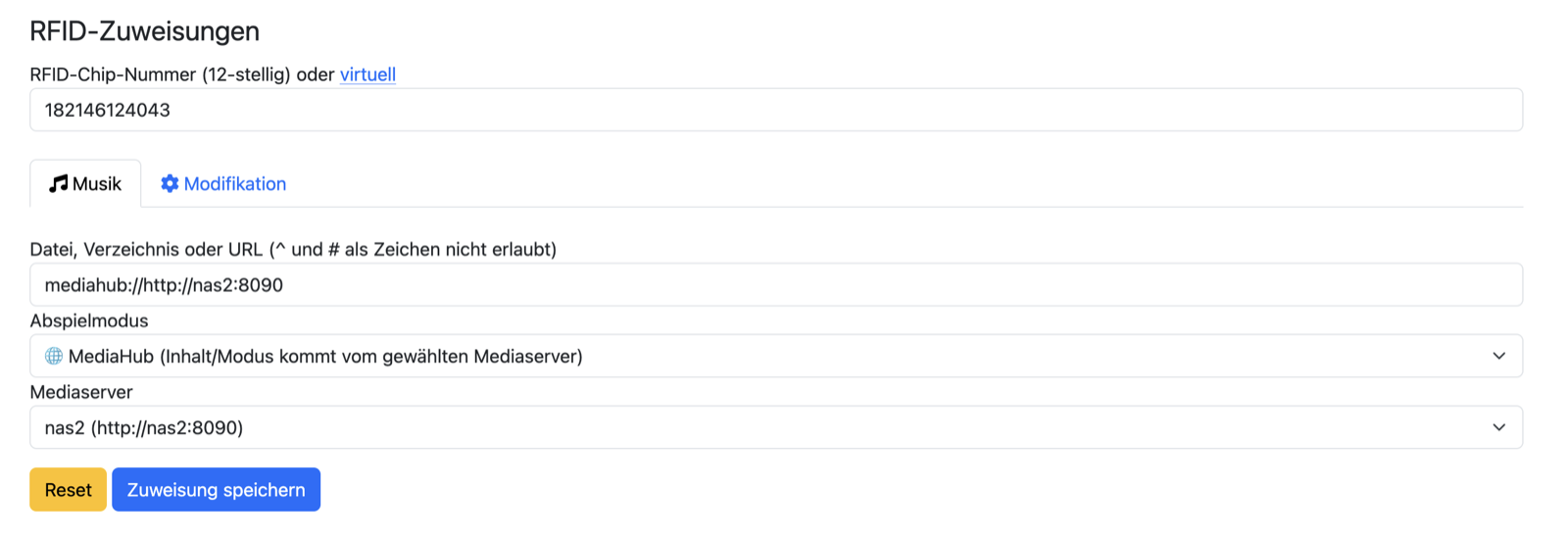
When you choose the MediaHub playback mode while teaching a card, another dropdown appears below
it: media server, listing all registered servers. The "file, directory, or URL" field fills in
automatically – as a combination of the mediahub:// prefix and the server address, e.g.
mediahub://http://nas2:8090. You don't enter this yourself; it's purely internal bookkeeping, so
ESPuino knows which server to contact the next time the card is placed.
You can skip the teaching, too
Turn on "Ask the MediaHub about unknown cards directly, without teaching them first" in the MediaHub tab and this step disappears entirely: place a card ESPuino doesn't know and it queries the registered servers on its own, then adopts an assignment held there automatically. Worth it above all with several devices - otherwise every card has to be taught on each of them separately.
The MediaHub web interface
The MediaHub server's own web interface is organized into five areas: ESPuinos, cards & assignments, new cards (a filter for still-unassigned cards), media, and settings – all reachable via the navigation at the top.
Devices
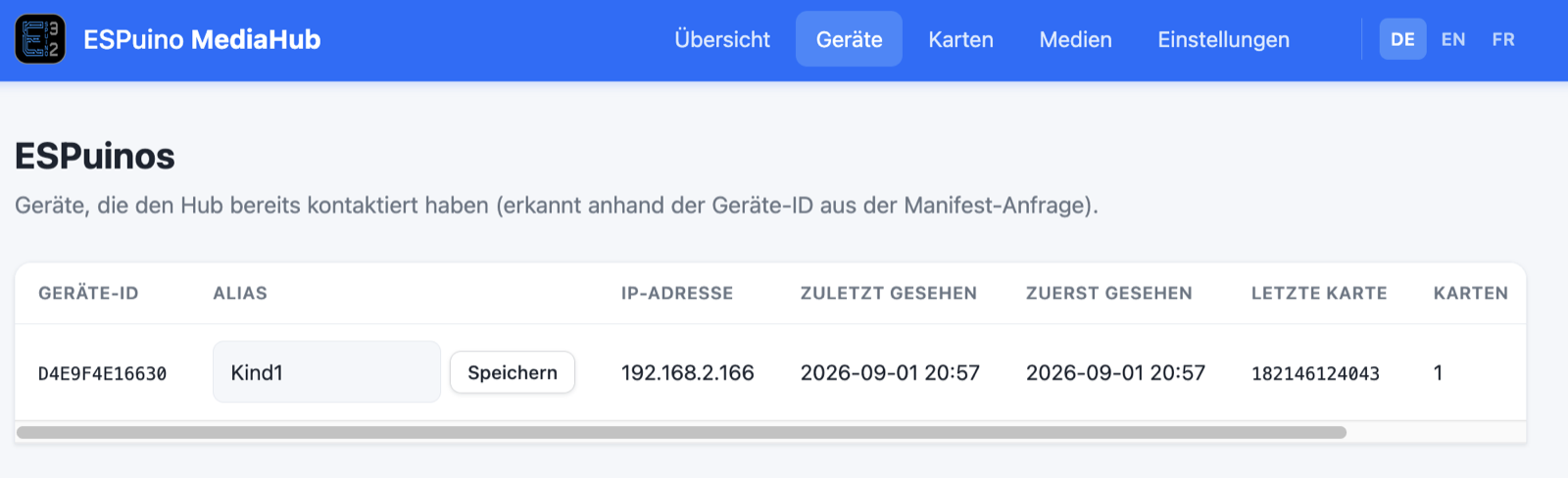
Here MediaHub lists all the ESPuinos that have already contacted it – recognized by the device ID from the manifest request. For each device, you see its IP address, when it was last and first seen, which card was placed most recently, and how many cards are already assigned to this device. The default display name is the technical device ID; the text field next to it lets you assign an alias instead, like "Kid1", which then shows up everywhere else in the interface.
Cards & assignments
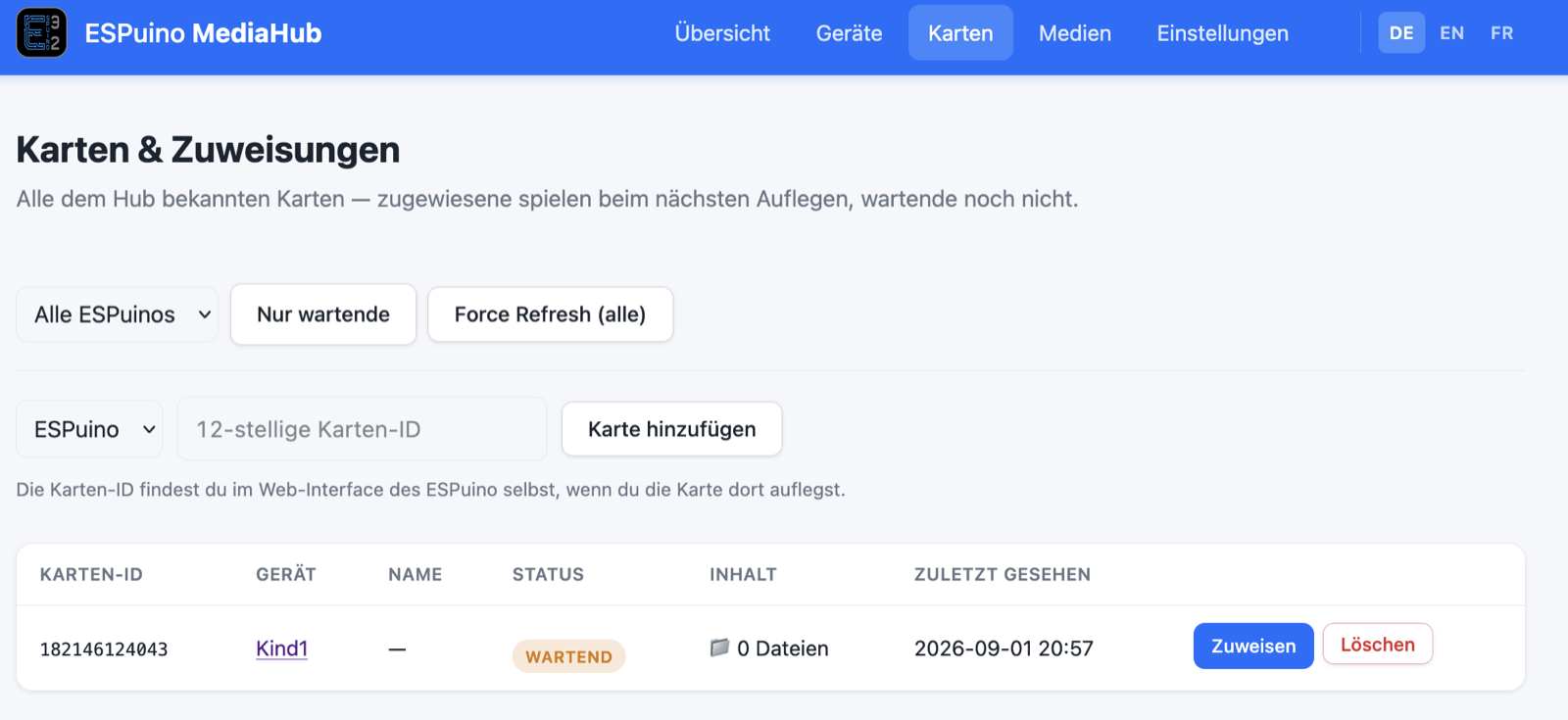
This page lists every card known to MediaHub – assigned ones play on the next tap, pending ones don't yet. The filters at the top let you narrow things down to a specific ESPuino device, show unassigned cards with "pending only", or trigger a fresh download for every card at once with "Force Refresh (all)". If you already know the twelve-digit card ID (found in the ESPuino web interface itself once you place the card there), you can also add a card manually without placing it first.
Pending cards also appear when an ESPuino with the option above asks about a card it doesn't know and no server knows it either. Placing a new card therefore announces it here before it has been assigned anywhere.
The list keeps itself up to date while you watch: place a card while this page is open and it shows up by itself within a few seconds – no reload needed. If you happen to be typing a card ID at that moment, or have a dialog open, the page isn't pulled out from under you; instead a bar appears at the top with a "Refresh now" button.
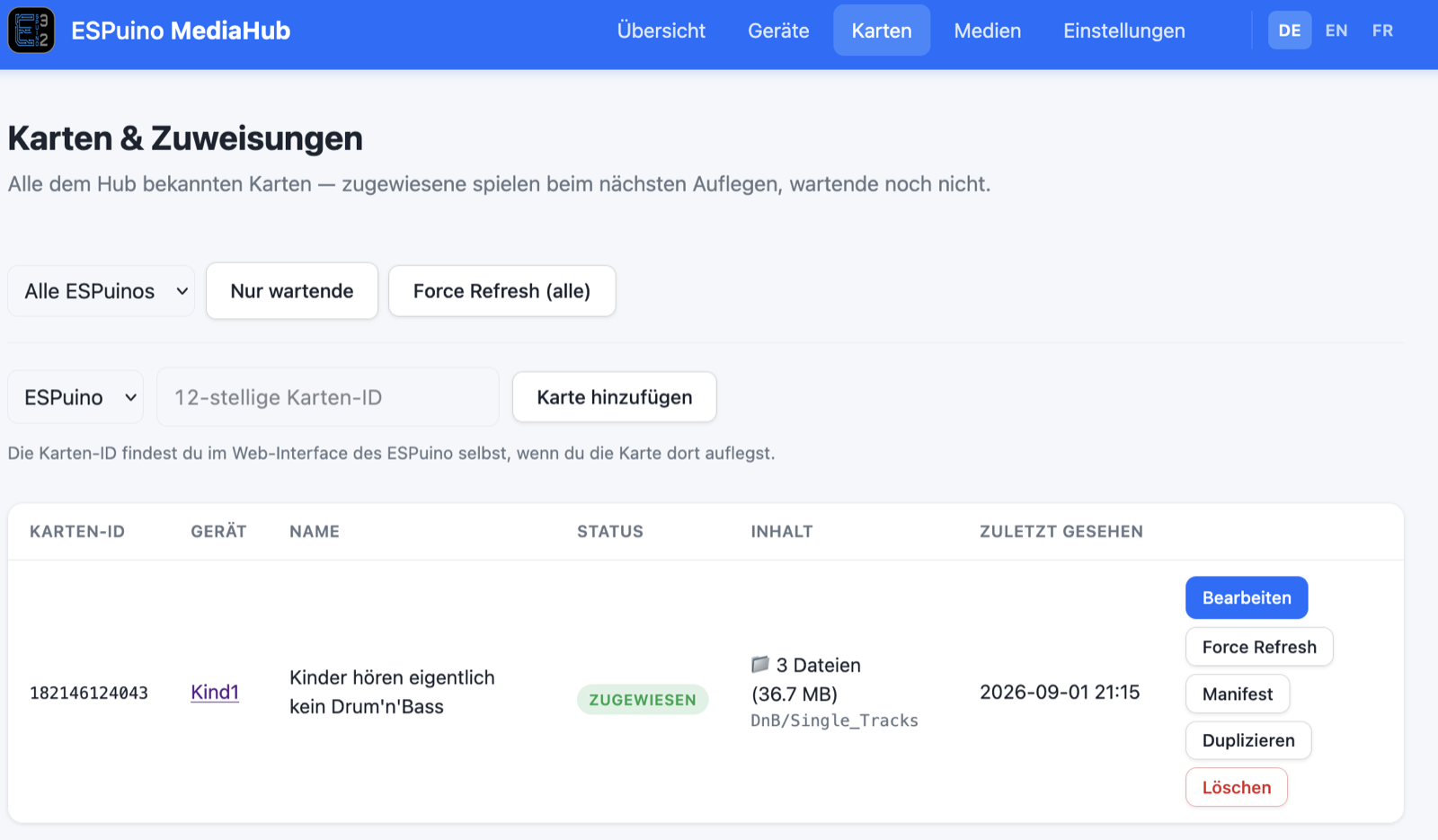
Once a card is assigned, five actions are available per row:
| Action | Effect |
|---|---|
| Edit | Changes the assignment afterward. If the data has already been transferred to the ESPuino, it fetches the new version by itself – over the next taps, as described in step 6 above. |
| Force Refresh | Forces a fresh download even though nothing about the content changed – meant for a local copy on the ESPuino that is damaged or missing. |
| Manifest | Shows the download file the ESPuino gets for this card. |
| Duplicate | Copies a finished assignment to another device after the fact – for instance when an ESPuino joins later. While creating or editing, you use the device tick boxes in the form instead (see below). |
| Delete | Removes the assignment (mind the delete setting, see below). |
Swapped a file? Save the assignment again
If you replace a file in your library with a new version without saving the assignment in the form again, a "Force Refresh" won't help either: ESPuino checks every downloaded file against the size and checksum from the manifest, and MediaHub still knows those from the old state. The download fails that check and the old copy stays. In such a case, open the assignment once and save it again – MediaHub then reads size and checksum afresh, and ESPuino fetches the new version by itself.
The assignment form
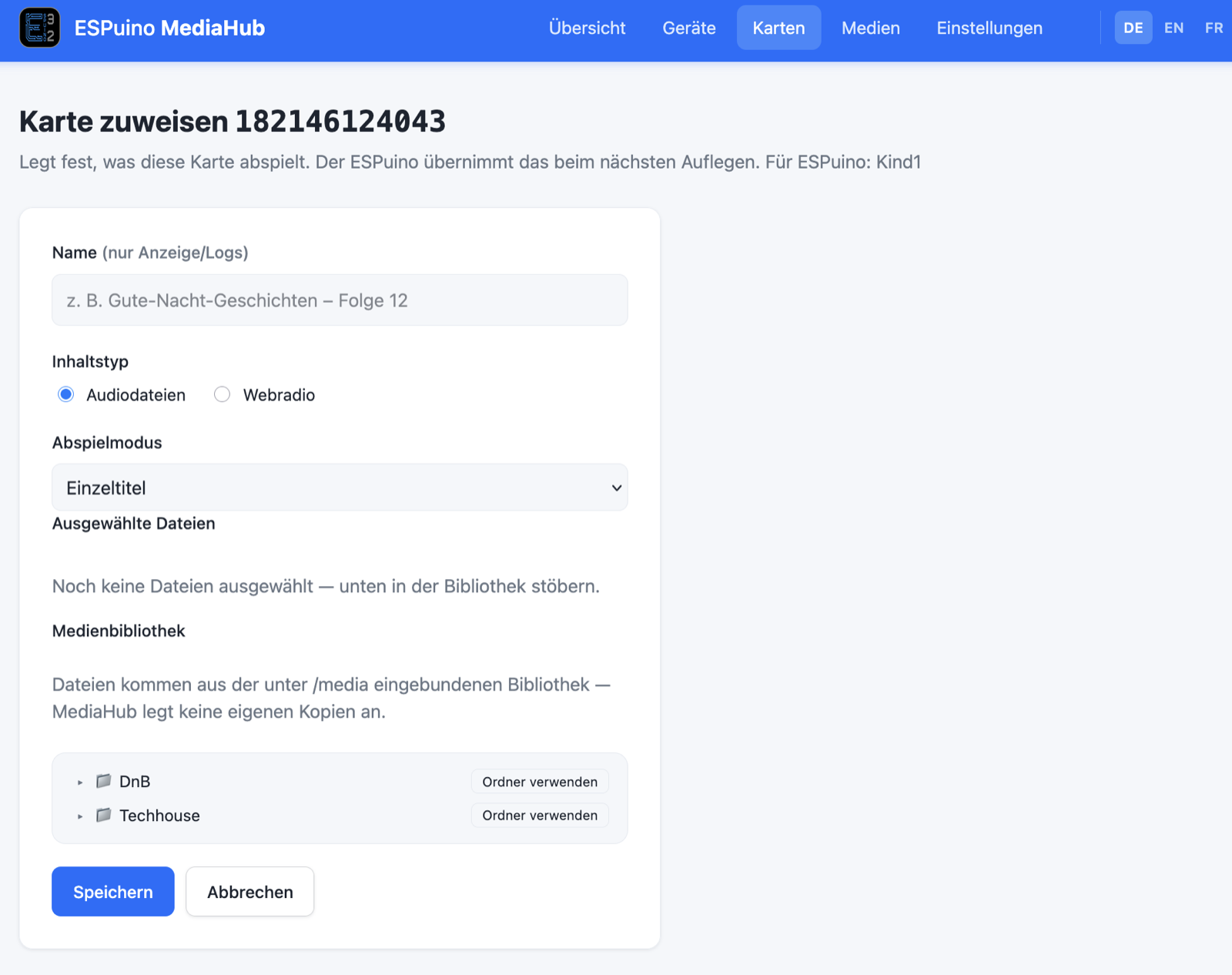
When assigning, you fill in the following fields:
- Name – for your own orientation only, shows up in the list and in logs, but has no function for playback.
- Content type – either audio files from your library, or a web radio stream (MediaHub
doesn't support a local
.m3ulist). - Playback mode – the same list as in the ESPuino web interface (see chapter 8 → playback modes).
- Media library – a folder tree of your collection mounted via
MEDIAHUB_MEDIA. "Use folder" adopts an entire folder for modes like "all titles of a folder". - Write to these ESPuinos – every other known device as a tick box. Each ticked device gets the same assignment, so one save puts a card on several ESPuinos at once. The block only appears if a second device is known at all.
Individual files instead of a whole folder, too
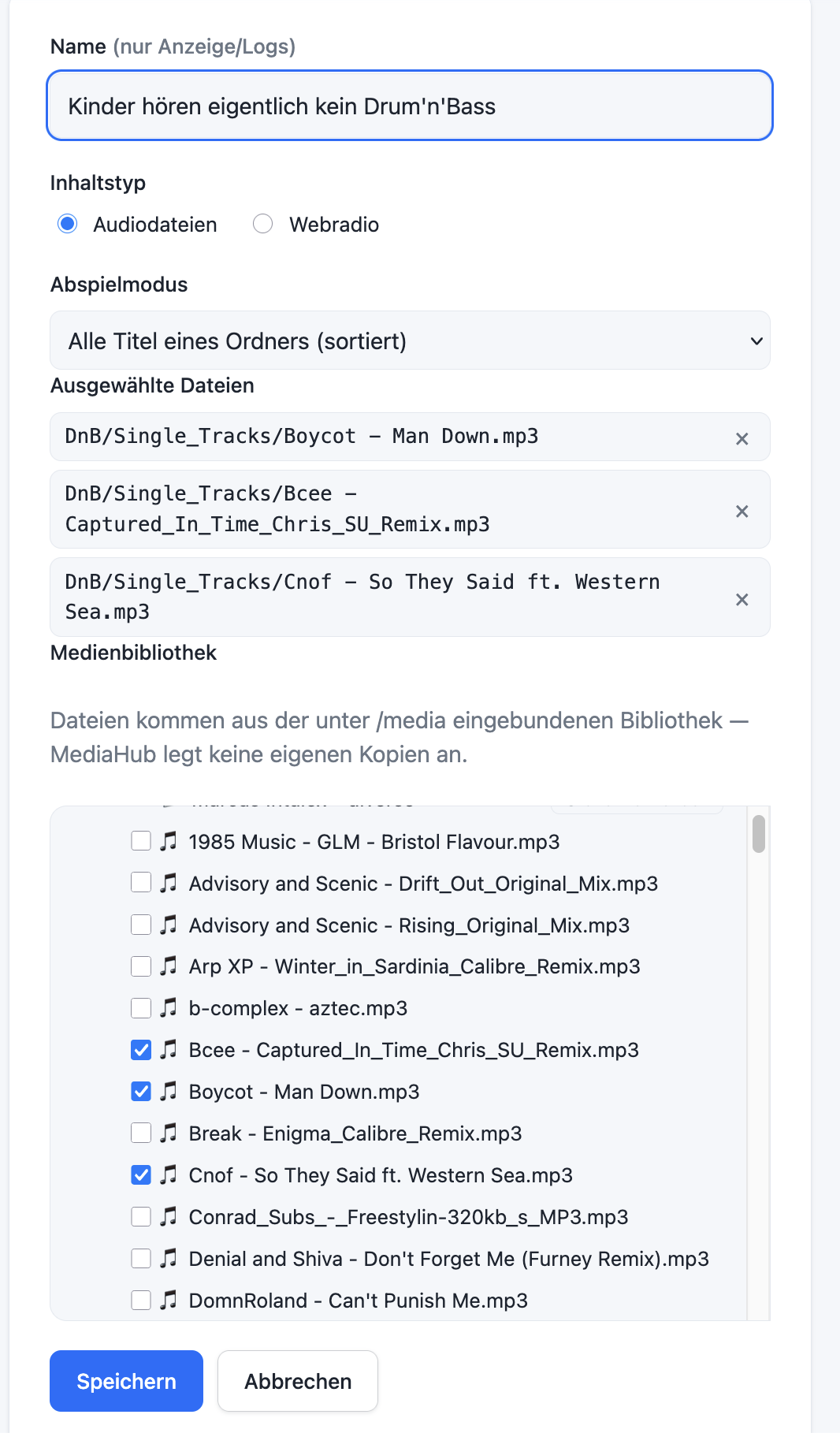
For folder-based modes such as "all titles of a folder (sorted)", you don't have to adopt the entire folder: you can also check individual files in the tree – only those get transferred, not the rest of the folder. Handy when a card should only cover a selection from a larger collection.
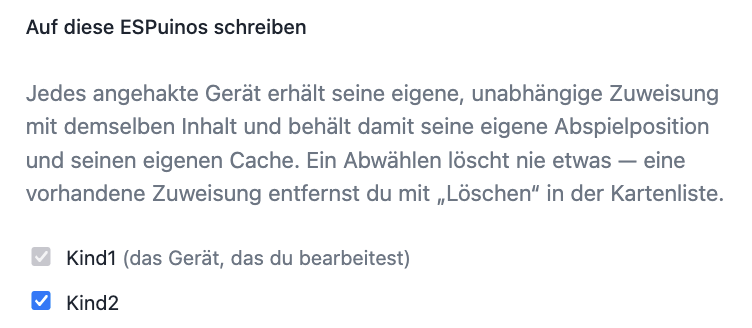
Several devices, several entries
Every ticked device gets its own assignment with the same content, not one shared entry for all of them. That's deliberate: it lets each ESPuino keep its own play position for audiobooks and its own download cache. A device that already carries the card is ticked from the start – so a later change to the content doesn't reach just one device and let the entries drift apart. The device whose card you are editing is always ticked and can't be unticked.
Unticking deletes nothing. An empty box means "don't touch this device", not "remove the assignment there" – for deleting, use "Delete" in the card list. The reason: depending on the setting, deleting can contact the ESPuino itself, and that shouldn't happen as a side effect of a Save button.
Media
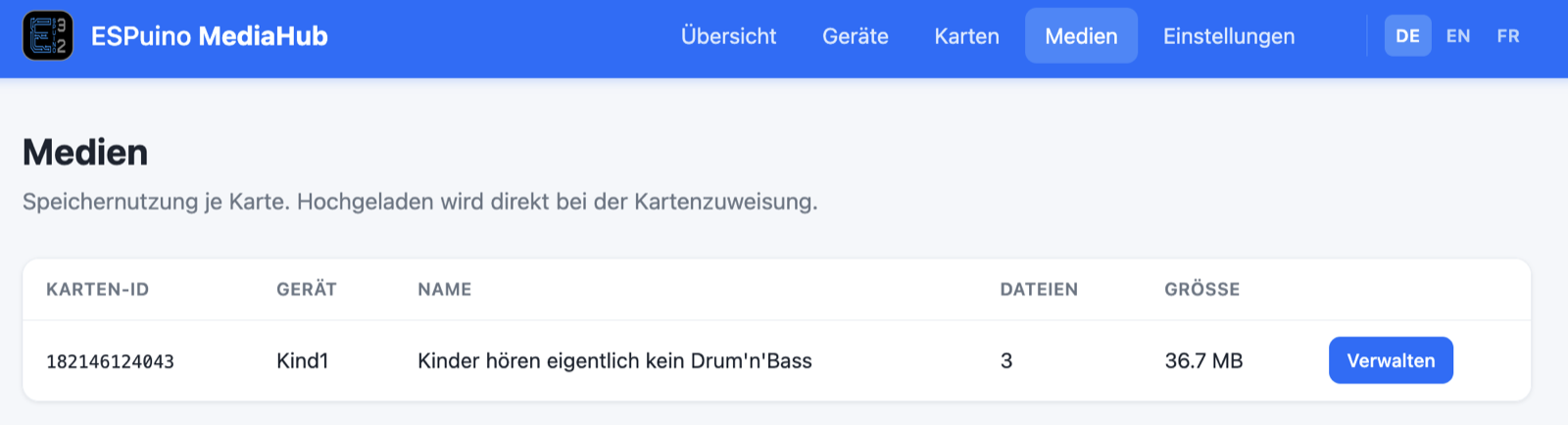
This page shows how many files and how much storage belong to each card. There's deliberately no dedicated upload area – uploading doesn't happen on this page, but directly during card assignment, by picking files from your existing library.
Settings
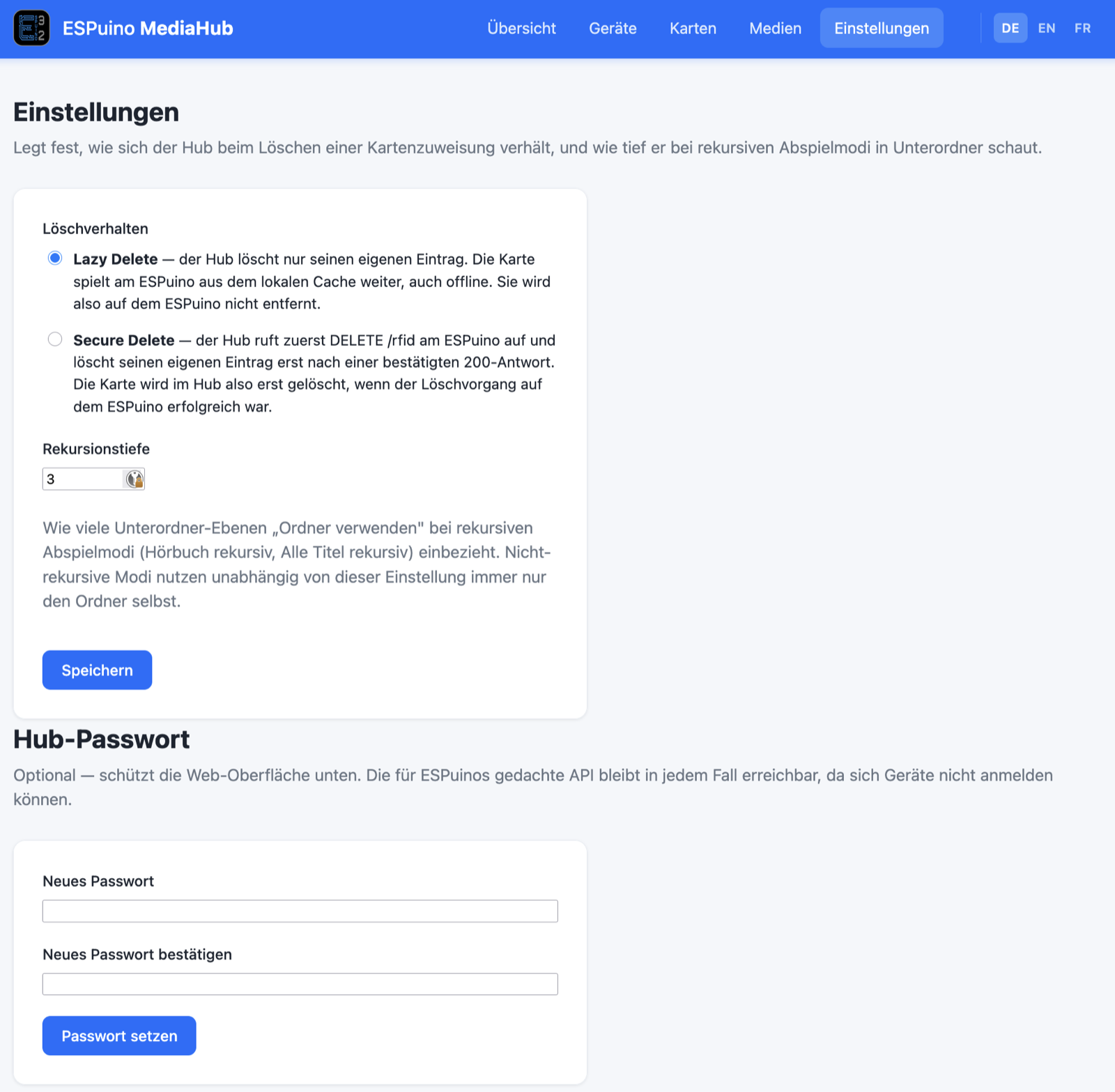
Here you set how MediaHub behaves when deleting a card assignment, how deep it looks into subfolders for recursive playback modes, and which devices a new assignment is pre-selected for:
- Delete behavior – lazy delete (default) only removes the entry on MediaHub; the card keeps playing unchanged on the ESPuino from its local cache, even offline, and isn't removed there. Secure delete, on the other hand, first calls the delete function on the ESPuino itself and only removes the MediaHub entry once the device has confirmed the deletion – for that, the ESPuino needs to be reachable at that moment.
- Recursion depth (default: 3) – sets how many subfolder levels recursive playback modes like "audiobook, recursive" or "all titles, recursive" include when downloading. Non-recursive modes always use only the chosen folder itself, regardless of this setting. Don't set the value unnecessarily high – otherwise a single assignment can unintentionally pull in a lot of data.
- Pre-selected devices when assigning – only decides which boxes the assignment form starts out with. Only the device being edited (default) behaves as before; all known ESPuinos ticks every device right away, so a single save covers the whole household. Either way, only what is actually ticked when you save gets written.
- Hub password (optional) – protects only MediaHub's own web interface. The API that the ESPuinos talk to stays reachable regardless, since devices can't log in.
Further reading
- ESPuino-Mediahub on GitHub – source code and technical specification.
- Forum thread #4607 – introduction and discussion (German-language).